Managing hundreds of tax returns means managing hundreds of document requests, preparation tasks, reviews, signatures, and filing acknowledgments. When those steps depend on individual reminders or separate spreadsheets, staff spend time chasing updates and reconstructing what happened.
To automate multi-client tax workflows, standardize your return process, collect client information digitally, import supported tax documents, track every return in a shared system, and use defined checks before and after filing. Assign a responsible team member to each stage so exceptions always have an owner.
Multi-client tax return management software brings those activities into a more consistent process. For high-volume practices, the goal is to reduce repetitive work while keeping preparers in control of accuracy, client communication, and filing decisions.
What is multi-client tax return management software?
Multi-client tax return management software helps tax professionals organize, prepare, monitor, and manage returns for multiple clients. Depending on the platform, it may combine tax preparation software with document collection, data import, return status reporting, communication tools, and e-file tracking.
Tax preparation handles the work inside a return. Multi-client tax management also addresses the work around it: what is missing, who is responsible, what needs review, and what happens next.
When evaluating software, look for:
- A shared view of returns and their current status.
- Digital intake and access to supporting documents.
- Data import for supported tax forms.
- Clear preparation and review responsibilities.
- Return diagnostics and tools for resolving errors.
- Visibility into federal and state filing acknowledgments.
- Integrations with other tax professional tools.
Confirm which functions are built in, which require configuration or an integration, and which remain staff procedures.
Step 1 Standardize your tax return workflow
Start by defining how a return moves through your practice. Automation works best when staff agree on what each stage means.
A practical workflow includes intake, document collection, preparation, review, signature collection, transmission, acknowledgment monitoring, and document storage.
For each stage, define three things: the person responsible, the information required, and the condition that allows the return to move forward.
For example, your office might require a completed intake checklist and all identified income documents before marking a return ready for preparation. If an additional document becomes necessary later, record the request and assign the follow-up.
Keep workflow progress separate from filing status. “In review” describes an internal task. “Accepted” describes a response from a tax agency. A team needs both to understand the return’s position.
Use the same definitions across preparers and locations, even if your software uses different labels.
Step 2 Create a consistent digital intake process
Digital intake gives clients a repeatable way to submit information before preparation begins. It also reduces the need for staff to reassemble details from appointments, phone calls, and scattered messages.
Set up a standard intake process that asks clients to:
- Confirm contact and household information.
- Identify relevant income sources and changes since the prior year.
- Submit requested documents through your approved secure channel.
- Respond to outstanding questions.
Adapt document requests to the client’s circumstances. A returning employee with one W-2 needs a different checklist from a self-employed client with business expenses.
CrossLink’s TaxPass Mobile Site supports digital collection of client information and documents. Use your office’s intake checklist alongside that collection process to determine whether the return is ready for preparation.
Suggested automation: Where your tools support it, use an intake submission to create a staff task or update a client record. Verify that the submission belongs to the correct client and tax year before treating it as complete.
Step 3 Import supported documents and review the extracted data
Optical character recognition, or OCR, extracts information from document images so supported data can populate return fields. This reduces repetitive typing across a high-volume workload.
CrossLink Agent Intelligence supports importing information from IDs, Forms W-2, 1099-K, 1099-R, and SSA-1099. The feature is built into the tax preparation workflow.
After importing a document:
- Confirm that it belongs to the correct taxpayer and tax year.
- Compare imported identifiers and amounts with the source.
- Check for missing pages, duplicate documents, and corrected forms.
- Resolve discrepancies before continuing.
Build this review into your preparation checklist. A successful import does not establish that the client’s documents are complete or that the return’s tax treatment is correct.
For unsupported documents, define how staff enter the information and document their review. A consistent exception process keeps automation useful even when only part of a return can be imported.
Step 4 Keep supporting documents with the return
Preparation slows down when staff must search separate folders or ask another employee where a document was saved.
Use a consistent location for supporting records and a naming convention that identifies the document type and tax year. CrossLink’s Document Archive stores supporting documents within the client’s return, helping staff access records during preparation and review.
Establish office procedures for distinguishing original and corrected documents, identifying unreadable uploads, and recording missing items.
Before moving a return into review, confirm that the reviewer can find the source documents and understand any unresolved questions.
Step 5 Build shared visibility into return status and ownership
High-volume return management depends on knowing which returns need attention without opening each one individually.
Maintain a shared view of the client, tax year, return type, responsible employee, workflow stage, next action, and relevant deadlines. Use your software’s available fields and reports, or an approved connected workflow system, to support that view.
CrossLink’s Work-in-Progress screen or dashboard provides visibility into tax return status, IRS acknowledgments, and rejects. Pair that visibility with clear staff ownership and documented next actions.
Create daily queues for:
- Returns waiting on client information.
- Returns ready for preparation or review.
- Returns waiting on signatures.
- Transmitted returns without an acknowledgment.
- Rejected returns requiring follow-up.
Review deadlines separately from workflow stage. A return can be correctly categorized as awaiting documents and still require urgent attention.
Step 6 Automate repeatable handoffs and reminders
Tax workflow automation connects a defined event to a specific action. For example, a verified status update might create a staff task or update a CRM record.
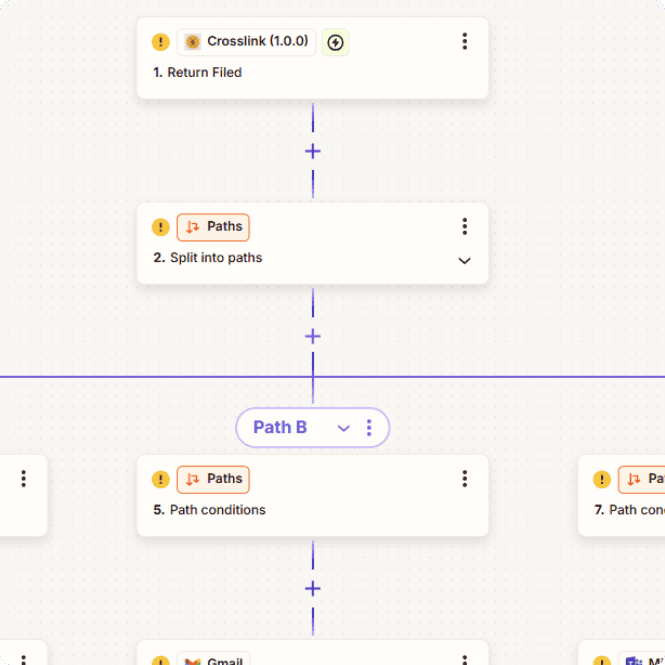
CrossLink’s Zapier integration connects CrossLink with other business applications. Available events, fields, and actions determine which workflows your office can configure.
Use the following as planning examples, then confirm support in your connected tools:
| Workflow event | Possible action | Control to include |
| Client intake received | Create a staff review task | Match the client and tax year |
| Return information updated | Update a linked CRM record | Prevent duplicate records |
| Follow-up becomes due | Notify the assigned employee | Stop reminders once resolved |
| Filing acceptance confirmed | Send an appropriate client update | Identify the accepted jurisdiction |
| An automation fails | Alert the workflow owner | Provide a manual recovery step |
Start with one repetitive task. Test it with sample records before expanding.
Build rules that prevent duplicate messages, stop reminders when the required action is complete, and alert staff when a connection fails. Limit information sent to connected applications to what the task requires and your practice authorizes.
Step 7 Establish filing checks and monitor acknowledgments
Pre-filing checks and post-filing monitoring serve different purposes. Your process needs both.
Before transmission, require staff to confirm that:
- Source information and imported data have been reviewed.
- Applicable diagnostics and unresolved questions have been addressed.
- Required forms and schedules are included.
- Required taxpayer signatures and filing authorizations have been received.
- The return has completed your office’s review process.
CrossLink’s Point-and-Shoot Error Correction helps preparers navigate to errors for correction. Software diagnostics support review; they do not establish that every fact or tax position is correct.
Where Form 8879 is required, the IRS requires the completed, signed authorization before the return is transmitted or released for transmission.
After transmission, check the relevant federal and state acknowledgments. A transmission record alone does not establish acceptance. IRS acknowledgment reports identify accepted and rejected returns.
Assign rejected returns to a responsible employee, record the reason, and track the corrective action through resolution. Follow up on returns without acknowledgments rather than assuming they were accepted.
Set an office rule: A return’s filing task remains open until its required acknowledgments have been reviewed and any unresolved filing issues have an owner.
Step 8 Measure results and improve the process
Review a few operational measures each week to identify where work is accumulating.
| Measure | What it helps you evaluate |
| Time from complete intake to preparation | Whether ready returns are waiting too long |
| Number of returns awaiting documents | Whether collection and follow-up need attention |
| Time spent awaiting review | Whether review capacity matches preparation volume |
| Returns awaiting signatures | Whether client approval is delaying filing |
| Unresolved rejects and missing acknowledgments | Whether post-transmission follow-up is working |
| Failed automations | Whether connected tasks need intervention |
Use a consistent definition for each measure. For example, distinguish the date a client first submits information from the date your team confirms that intake is complete.
Compare results with your own starting point. Avoid assuming a tool will deliver a specific time saving before measuring how it performs in your practice.
What does an automated multi-client workflow look like?
Consider an illustrative office managing 500 individual returns.
A client submits intake information and documents digitally. A staff member checks completeness and identifies missing items. The preparer imports supported documents, reviews the extracted data, and completes preparation. The reviewer checks the return and supporting records. Staff obtain required authorizations before transmission, then monitor acknowledgments and resolve filing issues.
Along the way, configured integrations can update connected records or create notifications where supported. Each handoff still has an owner and a clear completion condition.
The benefit is a repeatable process: staff spend less effort reconstructing return status and have a clearer view of the work that needs attention.
How CrossLink supports multi-client tax management
CrossLink brings together tools that support several stages of a high-volume tax workflow:
- TaxPass Mobile Site for collecting client information and documents digitally.
- Agent Intelligence for importing supported identification and income documents.
- Document Archive for accessing supporting documents within a client’s return.
- Work-in-Progress screen or dashboard for visibility into return status, IRS acknowledgments, and rejects.
- Point-and-Shoot Error Correction for navigating to errors that need attention.
- Zapier integration for connecting supported return data and events with other business tools.
Build your office procedures around the capabilities available in your CrossLink product and configuration. Standardized intake, clear ownership, and consistent review make those tools more useful across your client workload.
Ready to simplify return management? Explore CrossLink’s professional tax software to see how its preparation and workflow tools can support your practice.
Frequently asked questions
How do tax professionals manage multiple client returns efficiently?
Tax professionals manage multiple returns efficiently by standardizing intake, keeping documents accessible, importing supported data, assigning responsibility, and reviewing shared status reports. Daily attention to missing documents, review queues, signatures, and filing acknowledgments helps keep returns moving.
What should multi-client tax return management software include?
Look for shared return visibility, digital document collection, supported data imports, preparation and review tools, diagnostics, and e-file acknowledgment tracking. Confirm that the platform supports your return types, workload, team structure, and needed integrations.
Which tax preparation tasks can be automated?
Depending on the software and integrations, practices can automate supported document imports, record updates, staff notifications, and reminders. Preparers still need to review source information, resolve discrepancies, apply tax judgment, and authorize the next step.
Can OCR eliminate manual tax data entry?
OCR can reduce manual entry for supported documents, but it does not cover every document or eliminate review. Preparers should compare imported information with the source and enter or correct information that the tool does not capture accurately.
Is a transmitted tax return the same as an accepted return?
No. Transmission sends the return for processing. An acknowledgment reports whether the receiving tax agency accepted or rejected it. Track federal and applicable state responses separately and follow up on missing acknowledgments or rejects.
How should a high-volume practice start automating?
Choose one frequent, repeatable task, such as collecting intake information or importing supported documents. Define its owner and completion criteria, test the process with a small group of returns, and measure results before expanding.